Skip to Main Content  |   |   |  Screen Reader  |  Accessibility Statement
 
ETS User-Guidance Center
Essential Computer Security Settings for Use of ETS with ‘Edge in Internet Explorer mode’ 
To close this Screen, click on the [Close] button located on the bar above, or at the bottom of the Screen
  Using Microsoft Edge Browser to access ETS  
Note: The procedure outlined below is assuming Windows with latest version of ‘Microsoft Edge Browser’ (with support of Internet Explorer mode) is being used to access ETS. Please ensure that Operating System (ie Windows) is updated with latest software updates from Microsoft. The procedure may slightly vary for other combinations of Microsoft Operating Systems and version of ‘Microsoft Edge Browser’. You must either be logged on to your computer system as 'Administrator' or as a 'User', with sufficient privilege to edit the Security Setting of the Browser. If your computer system is managed, or set up and maintained, by your organization, your organization could have set up or restrict certain features, install and block extensions, monitor activity, and control how you use it, then you would require support from IT-Support Team of your organization. Also in case of managed systems, the IT-Support Team of your organization may need to configure such settings/ policies on the network to allow users of the network to access ETS with required setting/ policies.
   Configuring ‘Internet Explorer mode’ of Microsoft Edge Browser to access ETS
 
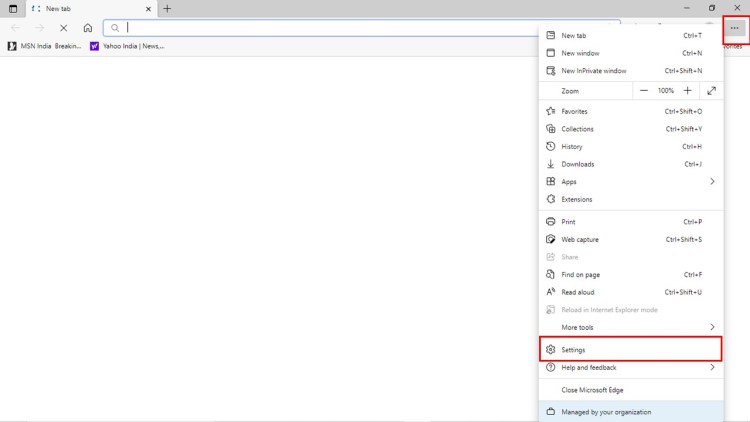
Step-1 : Open the Microsoft Edge Browser. Click on ‘…’ (ie Icon for Setting and More), or Press (ALT + F). From the list of options displayed on the screen, click on ‘Settings’.
Only an image for visual effect


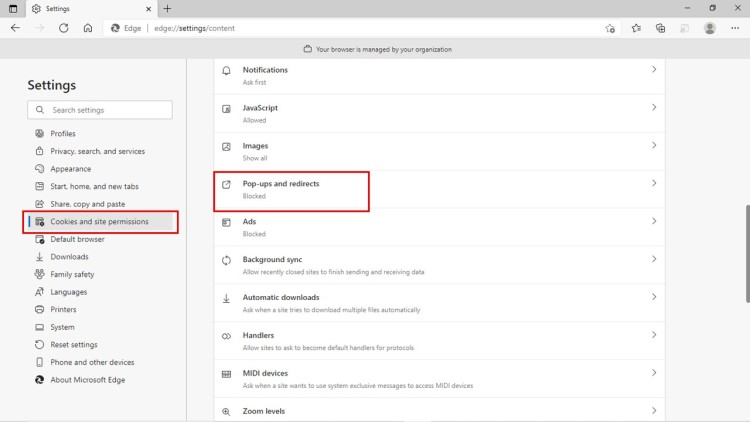
Step-2 : The Settings page would be displayed. Click on ‘Cookies and site permissions’, and then click on ‘Pop-ups and redirects’.
Only an image for visual effect


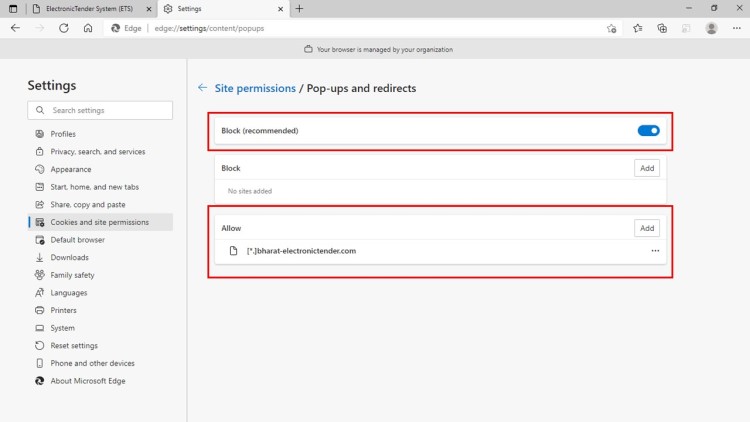
Step-3 : The ‘Pop-ups and redirects’ page would be displayed. If the option ‘Block (recommended)’ is ‘Enabled’, then in ‘Allow’ section, click on ‘Add’. In the Popup-screen that is displayed, add the URL:
https://www.bharat-electronictender.com The added URL would be displayed under the ‘Allow’ section.
Only an image for visual effect


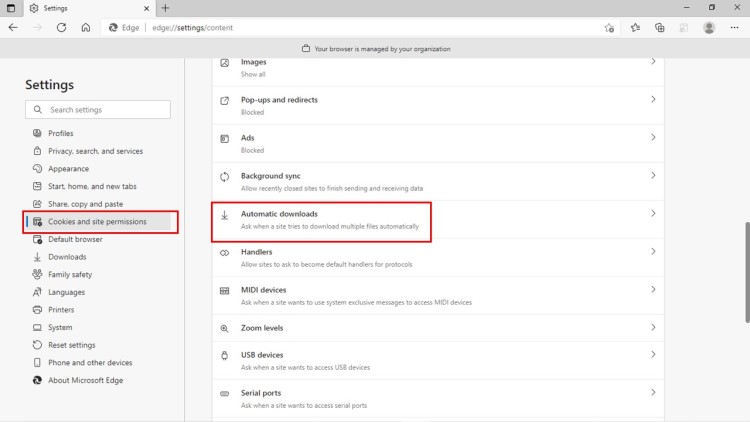
Step-4 : From the Settings options, click on ‘Cookies and site permissions’, and then click on ‘Automatic downloads’.
Only an image for visual effect


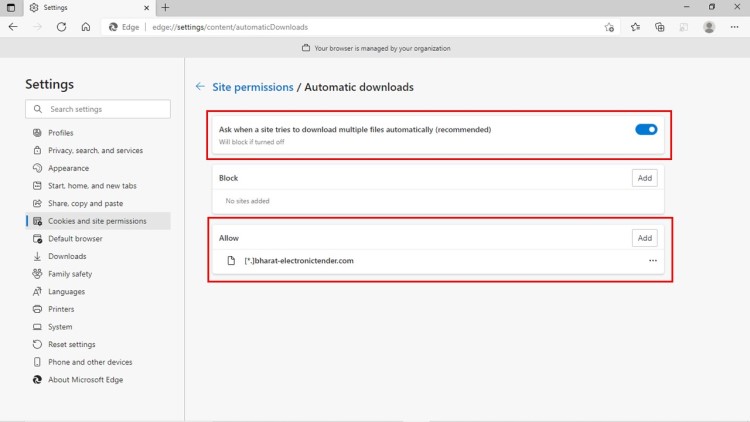
Step-5 : The ‘Automatic downloads’ page would be displayed. If the option ‘Ask when a site tries to download multiple files automatically (recommended)’ is ‘Enabled’, then in ‘Allow’ section, click on ‘Add’. In the Popup-screen that is displayed, add the URL:
https://www.bharat-electronictender.com The added URL would be displayed under the ‘Allow’ section. Close the Edge Browser and Open it again.
Only an image for visual effect


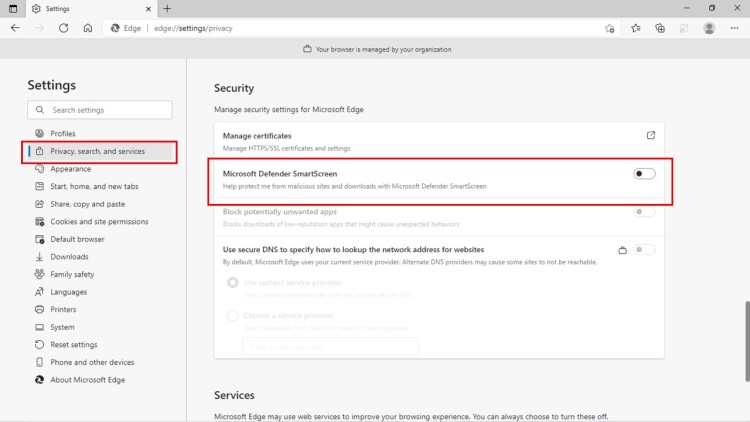
Step-6 : From the Settings options, click on ‘Privacy, search, and services’, the page related to Privacy, search, and services would be displayed. Scroll down to section titled ‘Security’. If the option ‘Microsoft Defender SmartScreen’ is ‘Enabled’, then ‘Disable’ this option.
Only an image for visual effect


Step-7 : Open the URL:
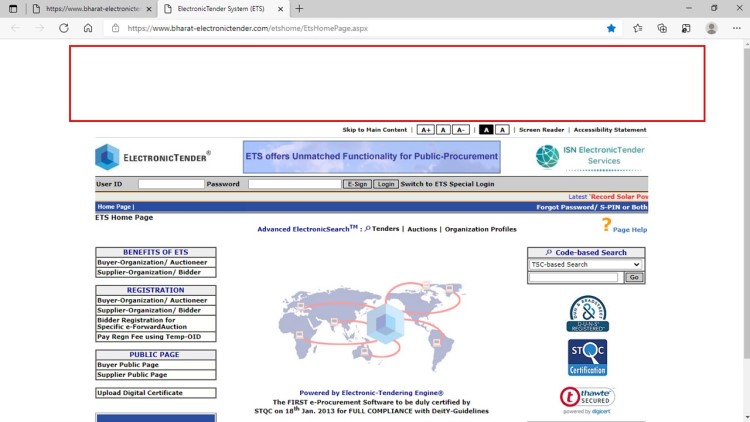
https://www.bharat-electronictender.com ‘ETS Home Page’ would be displayed. If some white space is displayed on the top of the page, this indicates that ETS has been opened in ‘Edge’, and not in ‘Internet Explorer mode of Edge’.
Only an image for visual effect


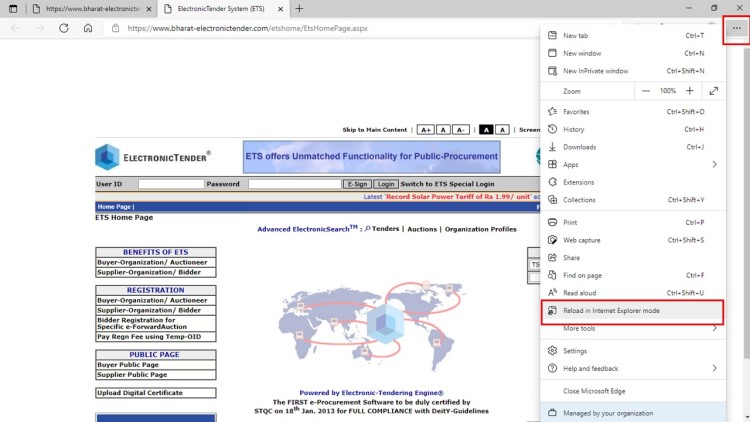
Step-7 : Click on ‘…’ (ie Icon for Setting and More), or Press (ALT + F). From the list of options displayed on the screen, check if ‘Reload in Internet Explorer mode’ is available. If available, click on ‘Reload in Internet Explorer mode’.

Important Note: In case the option ‘Reload in Internet Explorer mode’ is not visible, then follow steps for ‘Enabling the Internet Explorer mode for Edge’ given below.
Only an image for visual effect


Step-8 : The URL:
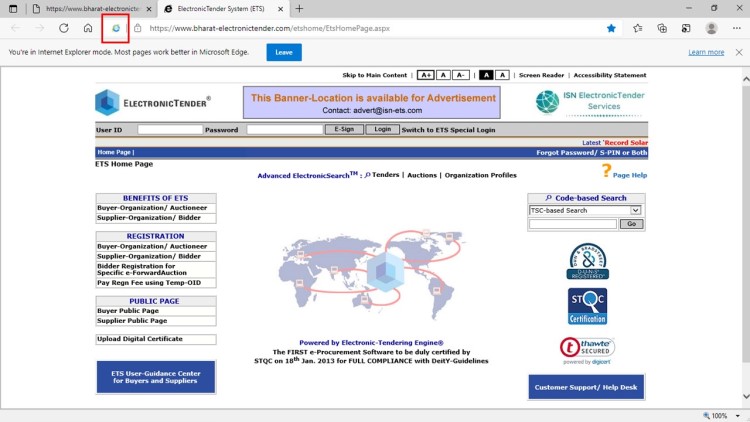
https://www.bharat-electronictender.com would be reloaded in ‘Internet Explorer mode’. Internet Explorer Icon would be displayed on the URL bar.

Important Note: In order to always open the URL
https://www.bharat-electronictender.com directly in ‘Internet Explorer mode’, follow steps for ‘Enabling Listed URLs to always open in Internet Explorer mode’ given below.
Only an image for visual effect

  Enabling the ‘Internet Explorer mode’ for Edge  
 
Note: For updating the ‘Windows Registry’, the logged in user of the system should have administrator rights/ privileges

There are two options for Enabling the ‘Internet Explorer mode’ for Edge:

Option-1: Manually update the Windows Registry to enable ‘Internet Explorer mode’ in Edge
  • Open the Windows Registry (ie RegEdit.exe)
  • Click and expand the following in sequential steps –
    HKEY_LOCAL_MACHINE; then
    SOFTWARE; then
    Policies; then
    Microsoft; then
    Edge
  • Right Click on ‘Edge’; then click on ‘New’; then click on ‘Key’. On the screen, rename ‘New Key #1’ to ‘Recommended’. A sub-option ‘Recommended’ would be displayed under ‘Edge’.
  • Right Click on ‘Recommended’, and click on ‘New’; then click on ‘DWORD 32 bit Value’. On the screen, rename ‘New Value #1’ to ‘InternetExplorerIntegrationReloadInIEModeAllowed’. A ‘DWORD 32 bit Value’ with the name ‘InternetExplorerIntegrationReloadInIEModeAllowed’ would be displayed.
  • Double Click on ‘InternetExplorerIntegrationReloadInIEModeAllowed’. A popup screen would be displayed. For ‘Value data’, change ‘0’ to ‘1’, and click on ‘OK
Option-2: Download and Execute the Script to enable ‘Internet Explorer mode’ in Edge.
          Download Script

When the Windows Registry for Enabling ‘Internet Explorer mode’ in Edge has been updated, the updated registry would look like the screen given below.
Only an image for visual effect

  Enabling Listed URLs to always Open in ‘Internet Explorer mode’  
 
Note: For updating the ‘Windows Registry’, the logged in user of the system should have administrator rights/ privileges

Download and Save the ‘IEModeSites.XML’ document preferably on the Desktop of your system.
     Download XML

There are two options for Enabling the listed URLs to always open in Internet Explorer mode:

Option-1: Manually Update the Windows Registry to enable ‘Listed URLs to always open in Internet Explorer mode’
  • Open the Windows Registry (ie RegEdit.exe)
  • Click and expand the following in sequential steps –
    HKEY_LOCAL_MACHINE; then
    SOFTWARE; then
    Policies; then
    Microsoft; then
    Edge
  • Right Click on ‘Edge’, then click on ‘New’, then click on ‘String Value’. On the screen, rename ‘New Value #1’ to ‘InternetExplorerIntegrationSiteList’. ‘REG_SZ’ with name ‘InternetExplorerIntegrationSiteList’ would be displayed.
    Click on ‘InternetExplorerIntegrationSiteList’, a popup screen would be displayed. For ‘Value data’, type the path for accessing ‘IEModeSites.XML’ document saved in your system (preferably on the Desktop of your system), and click on ‘OK’.
  • Right Click on ‘Edge’, and click on ‘New’ then ‘DWORD 32 bit Value’. On the screen, rename ‘New Value #1’ to ‘InternetExplorerIntegrationLevel’. A ‘DWORD 32 bit Value’ with name ‘InternetExplorerIntegrationLevel’ would be displayed.
  • Click on ‘InternetExplorerIntegrationLevel’. A popup screen would be displayed. For ‘Value data’, change ‘0’ to ‘1’, and click on ‘OK
Option-2: Download, Update and Execute the Script to enable ‘Listed URLs to always open in Internet Explorer mode’.
  • Download the Script     Download Script
  • Open the Script in ‘Notepad’ (or any other text editor), update the path for accessing ‘IEModeSites.XML’ document saved in your system (preferably on the Desktop of your system). Save the changes and close the Script.
  • Execute the Script
When the Windows Registry for Enabling the ‘Listed URLs to always open in Internet Explorer mode’ in Edge has been updated, the updated registry would look like the screen given below.

Note: The path of the XML file would be the path of user system, which may vary from one displayed in the screen given below.
Only an image for visual effect

  View Edge Policy related to Internet Explorer mode  
 
Open the Microsoft Edge Browser. To Check the Policy setting on Edge, click on ‘…’ (ie Icon for Setting and More), or Press (ALT + F). From the list of options displayed on the screen, click on ‘Managed by your Organization
  Only an image for visual effect


The ‘edge://management’ page would be displayed. Click on the link ‘edge://policy
Only an image for visual effect


The Edge Policy related screen (ie edge://policy) would be displayed. Along with other Policies, Policies related to the following would be displayed
  • InternetExplorerIntegrationReloadInIEModeAllowed
  • InternetExplorerIntegrationLevel
  • InternetExplorerIntegrationSiteList
Note: These policies were set in Windows registry to enabled ‘Internet Explore mode’ in Edge, and maintain ‘List of URLS to be opened in Internet Explorer mode’ in Edge. Even after the new policies are updated in Windows Registry, if you do not see these policies, your system may be getting managed under domain controller/ network you are connected to. Kindly contact your IT-Support to get these enabled on your domain controller/ network.
Only an image for visual effect